
How to Download and Install Roblox on PC: Official Setup, System Specs, and Clean Install Guide
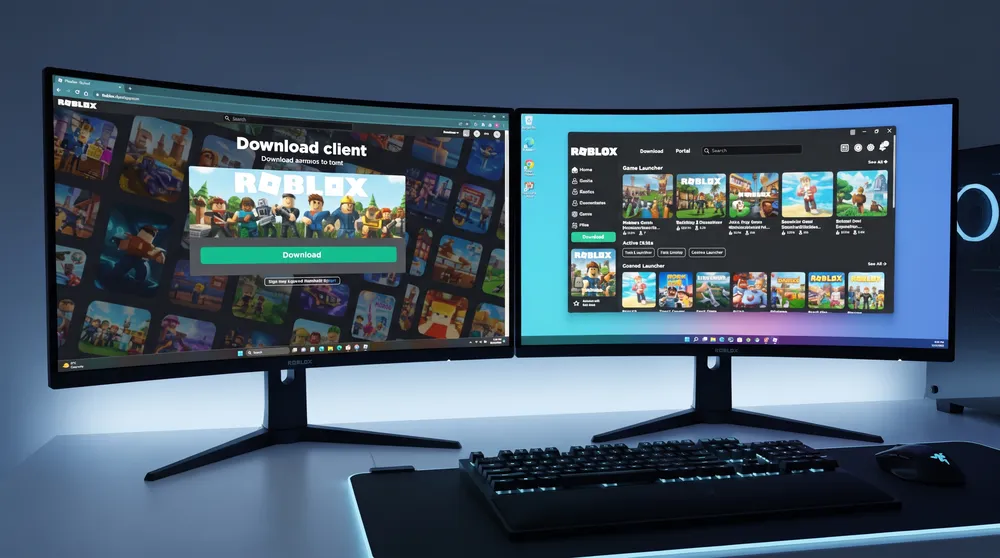
While accessing experiences on mobile or consoles is handled through integrated app stores (such as setting up Roblox on PS4 and PS5), running Roblox on PC requires downloading the desktop client directly through the official browser launcher.
Because third-party aggregator sites frequently bundle game installers with adware or modified background files, using verified download channels is essential to preserve account security.
Below is the verified method to download, install, and troubleshoot the Roblox Player on desktop computers.
Minimum System Requirements for PC and Mac
Before initiating the download, verify that your computer meets the baseline hardware specifications required by the current client build:
-
Operating System: 64-bit Windows 10 or Windows 11 (Version 1607 or higher); macOS 10.13 (High Sierra) or later.
-
Processor (CPU): Minimum 1.6 GHz dual-core processor (Intel or AMD). Modern processors manufactured after 2016 run the platform without issue.
-
Memory (RAM): 4 GB minimum (8 GB recommended for complex open-world experiences).
-
Graphics (GPU): Dedicated or integrated GPU supporting DirectX 11 or higher and Shader Model 2.0.
-
Storage Space: Minimum 1 GB of available disk space for initial client installation files and temporary asset caching.
-
Internet Connection: Broadband internet connection with at least 4 to 8 Mbps download speed to stream active server meshes.
Step-by-Step: How to Download the Official Roblox Player on PC
The standard Windows and macOS installation relies on a browser-directed handshake. Unlike traditional standalone titles distributed as single massive installer archives, Roblox installs a lightweight bootstrapper that configures the client automatically.
-
Open Your Web Browser: Launch Google Chrome, Mozilla Firefox, Microsoft Edge, or Safari.
-
Navigate to the Official Portal: Go directly to
[www.roblox.com](https://www.roblox.com). Never use unverified external file-hosting mirrors or search engine sponsored ad links. -
Log Into Your Account: Sign into your existing profile or register a new account. Once inside your dashboard, you can configure your social connections and learn how to add friends on Roblox to coordinate group lobbies.
-
Select Any Experience: Browse the home screen and click on any game card (for instance, Blox Fruits, Dress to Impress, or historical projects documented in our guide covering what was the first game on Roblox).
-
Click the Green Play Button: When you click Play, the browser checks your operating system for an existing client installation.
-
Trigger the Installer: A modal window will appear on screen stating "Roblox is now loading." If no client is detected, click the green button labeled Download and Install Roblox.
-
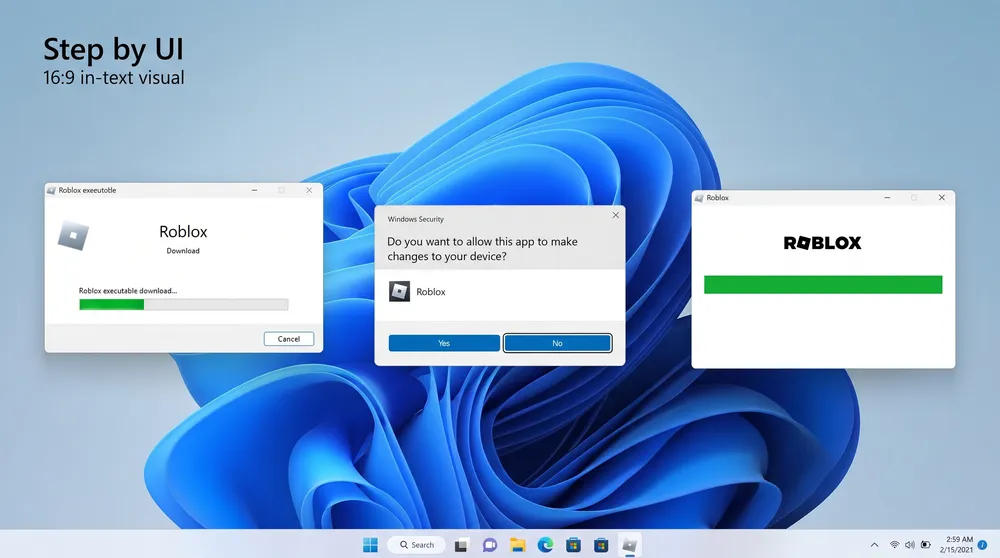
Run the Executable: Open your browser's download folder and run
RobloxPlayerInstaller.exe(on Windows) orRoblox.dmg(on Mac). -
Finalize Setup: The bootstrapper will download the latest asset libraries and configure file associations. Once the progress bar fills, click OK.
Returning to your browser and clicking Play will now launch the 3D client automatically.
Alternative Method: Microsoft Store App (Windows 10/11)
Windows users can also download the platform through the native Microsoft Store:
-
Open the Microsoft Store application from the Windows Start menu.
-
Search for Roblox and confirm the publisher is listed as Roblox Corporation.
-
Click Get or Install.
Note on Performance: The web-downloaded executable (RobloxPlayerInstaller.exe) is generally preferred over the Microsoft Store build because it updates faster, integrates better with third-party capture software like OBS, and allows cleaner file management if you need to clear your temporary cache.
Troubleshooting Common Download and Launch Errors
If your installation freezes or you find yourself trapped in an infinite download loop:
1. The Endless "Download Roblox" Loop
If your browser repeatedly prompts you to download the installer even after running the setup file:
-
Clear Browser Cookies and Cache: Outdated browser tokens often fail to recognize that the protocol handler is registered. Clear your browser cache and restart your web client.
-
Protocol Handler Permission: When your browser displays the pop-up asking "Open Roblox?", check the box that says "Always allow roblox.com to open links of this type" before confirming.
2. Antivirus False Positives (Byfron Anti-Cheat)
Roblox utilizes the Byfron tamper-protection security system. Certain third-party antivirus suites occasionally flag client executables during fresh installations. If your installation stalls at 90 percent:
-
Temporarily whitelist the Roblox directory located at
%localappdata%\Roblox. -
Verify that Windows Defender allows
RobloxPlayerBeta.exethrough your outbound firewall.
Account Security and Next Steps
Once your client is installed and running, you can personalize your avatar, join developer events, and redeem promotional items.
If you have physical toy merchandise or seasonal promotional strings, make sure to read our detailed walkthrough on everything you need to know about Roblox codes to claim virtual accessories safely without risking account access. Understanding the platform’s foundations (including who created Roblox and the story of its creators) provides valuable perspective on how this lightweight launcher transformed into one of the largest online creation platforms in the world.


