HP Gaming PC Windows 11 Optimization Guide
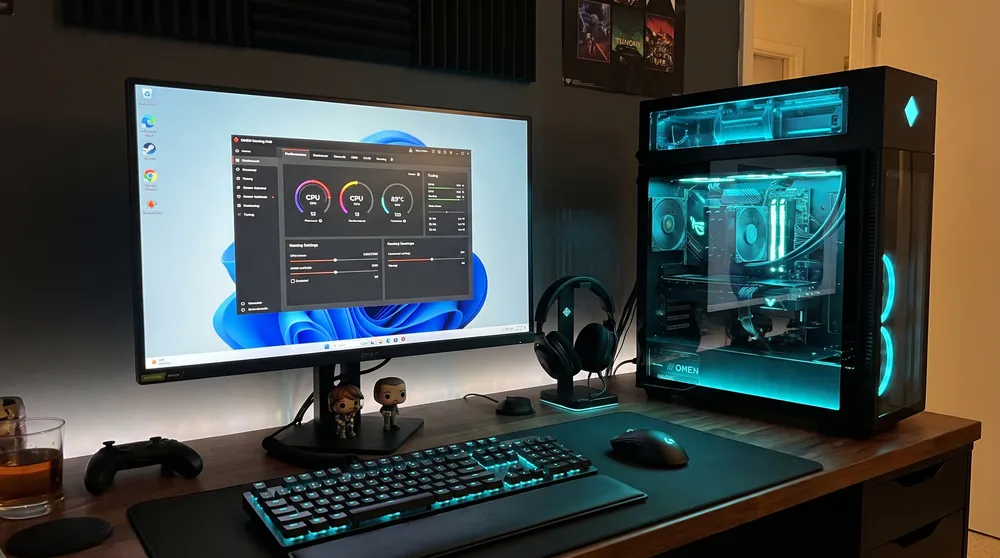
HP commands a sizable share of the pre-built market with its OMEN and Victus lines. However, a new HP gaming PC running Windows 11 rarely delivers peak frame rates straight out of the box. Factory software images often include conservative power limits, background telemetries, and non-essential startup services that degrade performance.
Similar to tuning a performance rig covered in our Alienware Aurora Intel Core Ultra 7 gaming desktop guide, auditing your Windows 11 setup ensures tight frametimes and minimal latency.
Here is the operational checklist to optimize an HP gaming PC running Windows 11 for gaming.
1. Configure OMEN Gaming Hub and Thermal Profiles
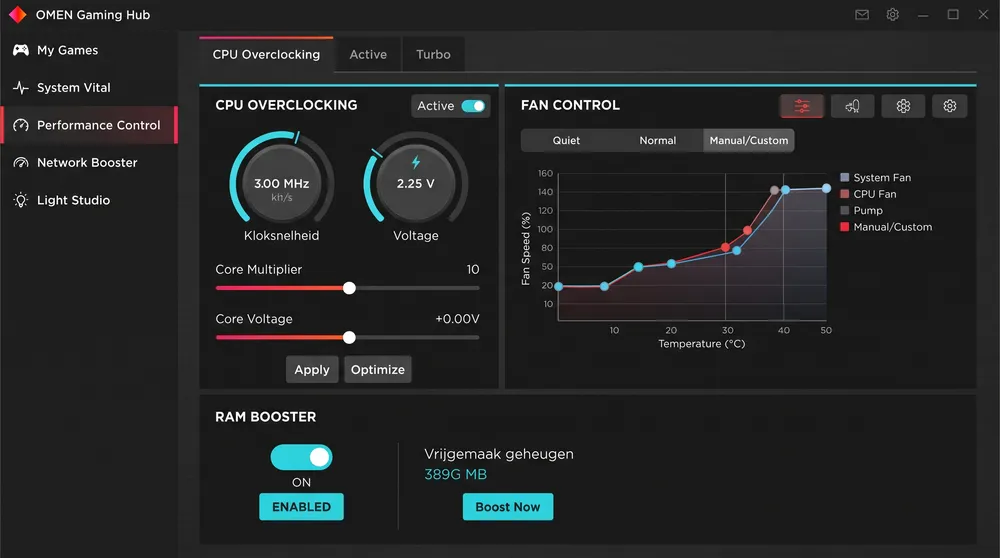
HP's primary hardware manager, the OMEN Gaming Hub, controls CPU current limits and fan behaviors:
-
Switch to Performance Mode: Open the OMEN Gaming Hub and navigate to your active system tab. Shift the operating profile from Balanced to Performance. This raises power thresholds, allowing the CPU to sustain boost clocks during demanding sequences.
-
Customize Fan Curves: Set fan behavior to Turbo or create an aggressive custom curve. Default curves favor low acoustic noise, which frequently causes thermal throttling during extended sessions in compact OEM cases.
-
Network Booster: Enable the Network Booster utility to prioritize gaming packets over background downloads across your active network adapter.
2. Essential Windows 11 System Settings
Several native Windows 11 settings directly impact gaming consistency:
-
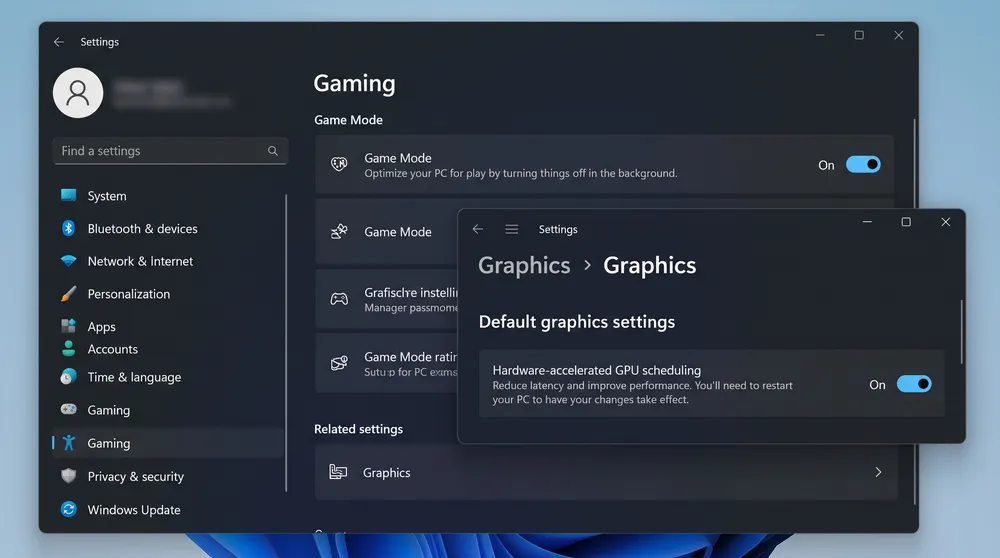
Enable Game Mode: Navigate to Settings > Gaming > Game Mode and ensure it is toggled on. This prioritizes CPU and GPU resources for active gaming processes while suppressing Windows Update driver installations.
-
Hardware-Accelerated GPU Scheduling (HAGS): Go to System > Display > Graphics. Turn on Hardware-accelerated GPU scheduling and restart your PC. HAGS reduces input latency and is required for technologies like DLSS Frame Generation.
-
High Performance Power Plan: Open the Windows Control Panel, go to Power Options, and select High Performance (or Ultimate Performance if unlocked) to keep CPU cores from dropping into low-voltage idle states mid-game.
3. Remove Bloatware and Restrict Startup Tasks
Pre-built vendor images routinely come bundled with background services that consume memory and CPU cycles:
-
Uninstall Third-Party Antivirus Suites: Remove trial antivirus software like McAfee or Norton. Built-in Windows Security delivers comprehensive protection without the frame drops caused by aggressive background disk scans.
-
Trim Startup Applications: Press
Ctrl + Shift + Escto open Task Manager and navigate to the Startup apps tab. Disable startup permissions for non-essential applications such as Discord, Spotify, and manufacturer registration utilities. -
Install Clean GPU Drivers: Avoid relying on the HP Support Assistant for graphics card updates. Download the latest display drivers directly from NVIDIA or AMD to ensure day-one game compatibility and optimizations.