How to Fix Logitech G HUB Not Installing: Visual C++ Fixes and Setup Guide
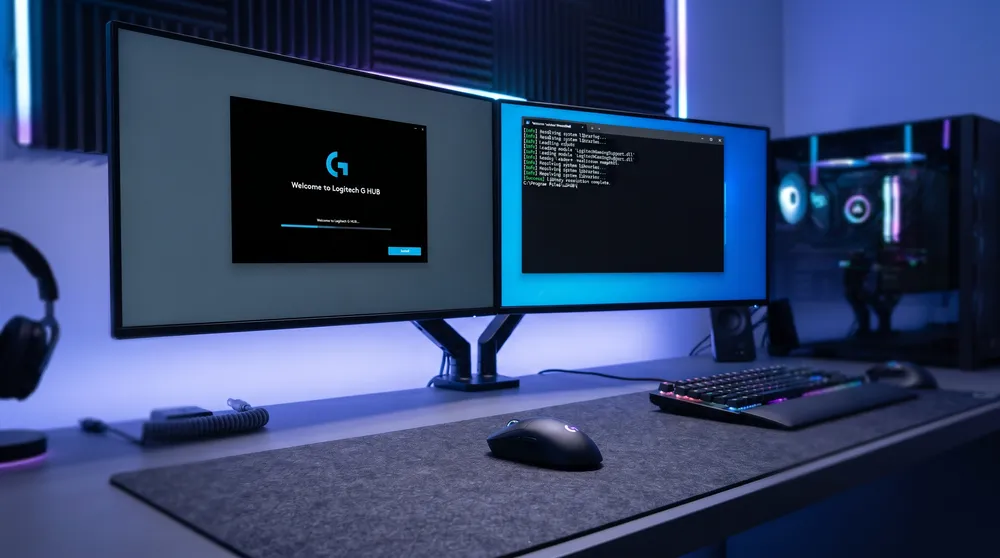
Configuring high-precision peripherals for competitive gaming requires dependable driver support. For owners of popular esports gear like the Logitech G Pro series, the centralized driver hub is Logitech G HUB. However, thousands of users run into installation roadblocks where the installer hangs indefinitely on the animated loading loop or terminates abruptly with missing DLL notifications.
The recent spike in searches pairing peripheral software with microsoft visual c++ redistributable packages points directly to the root cause of these installation freezes.
Below is the verified troubleshooting process to fix setup failures and get Logitech G HUB operational on your system.
Why Logitech G HUB Fails to Install
The G HUB installer is not a standalone executable; it relies on dynamic-link libraries (DLLs) compiled through Microsoft C and C++ development suites:
-
Missing C++ Runtimes: If your clean Windows installation lacks the latest Visual Studio runtime packages, the LGHUB updater process cannot execute system calls, causing it to freeze at the initial initialization screen.
-
Architecture Mismatches: Many modern 64-bit systems only contain the x64 runtime, whereas older application background hooks still look for the 32-bit (x86) library binaries.
-
Corrupted LGHUB Agent Services: If an earlier installation was interrupted, persistent registry keys and locked files in your
AppDataandProgramDatafolders block incoming updates.
Step 1: Repair and Install Microsoft Visual C++ Redistributables
Installing both the 32-bit and 64-bit packages of the latest combined Visual C++ runtime addresses the majority of silent install crashes:
-
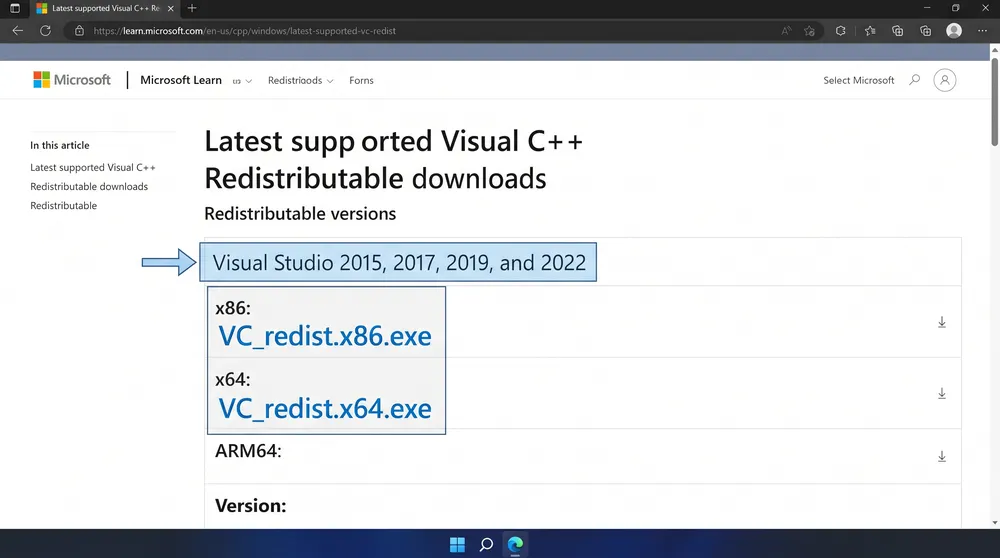
Navigate to the official Microsoft Learn support portal for Visual Studio runtimes.
-
Download both
vc_redist.x86.exeandvc_redist.x64.exeunder the Visual Studio 2015, 2017, 2019, and 2022 unified installer bundle. -
Run both installers. If prompted, select Repair; if running a fresh environment, complete the standard installation.
-
Restart your computer to allow the Windows kernel to register the newly placed DLL dependencies.
Step 2: Clear Corrupted Logitech AppData and ProgramData
Residual configuration caches from failed attempts will prevent the software from initializing properly:
-
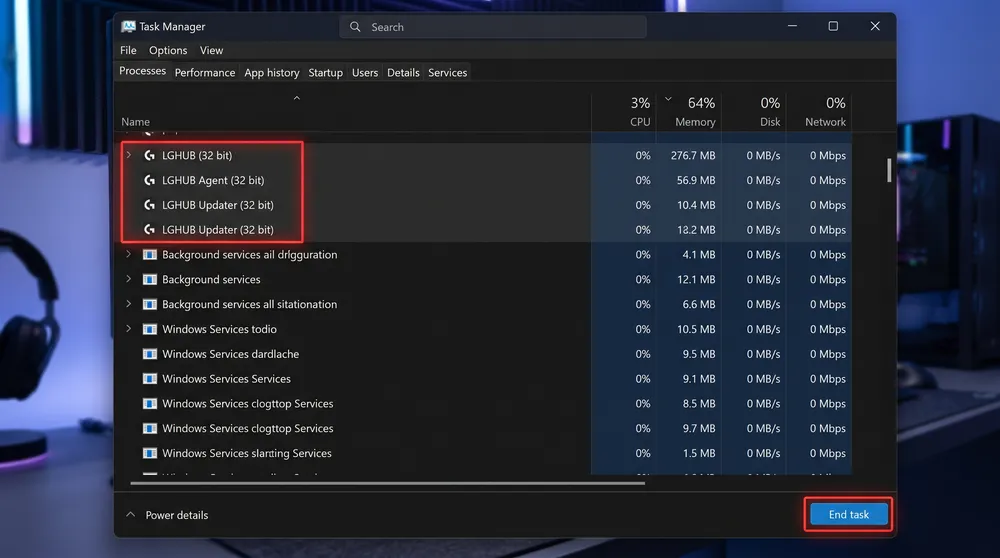
Press
Ctrl + Shift + Escto launch Task Manager. Locate and terminate any active instances ofLGHUB.exe,lghub_agent.exe, andlghub_updater.exe. -
Press
Windows Key + R, type%appdata%, and press Enter. Locate the LGHUB folder and delete it. -
Press
Windows Key + R, type%localappdata%, and delete the LGHUB directory. -
Press
Windows Key + R, type%programdata%, locate the LGHUB folder, and delete it. -
Navigate to
C:\Program Files\LGHUBand manually runlghub_updater.exedirectly as Administrator before launching the primary interface.
Step 3: Configure Firewall and Real-Time Protection Exceptions
Third-party security tools frequently flag peripheral telemetry updaters as unauthorized intrusion vectors:
-
Open Windows Security > Firewall & network protection.
-
Click Allow an app through firewall and click Change settings.
-
Ensure
lghub.exe,lghub_agent.exe, andlghub_updater.exeall have checkmarks beside both Private and Public communication permissions.
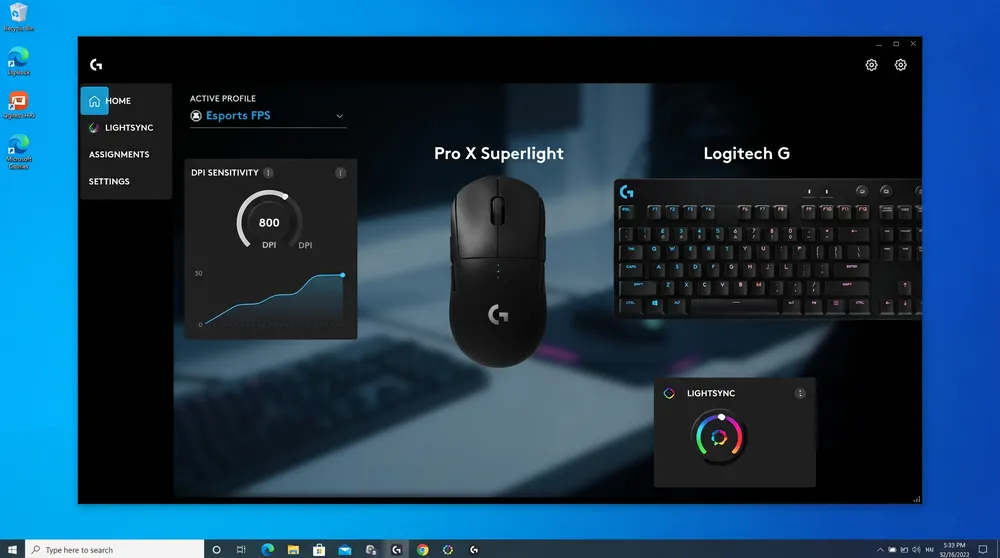
Once completed, relaunch the clean installer downloaded directly from the official Logitech G portal. The software will finalize peripheral detection, unlock onboard memory profile saving, and let you calibrate DPI steps and surface tuning without further interruption.