
Xbox Free Cloud Gaming Rollout: How the Ad-Supported Tier Works and Eligible Games
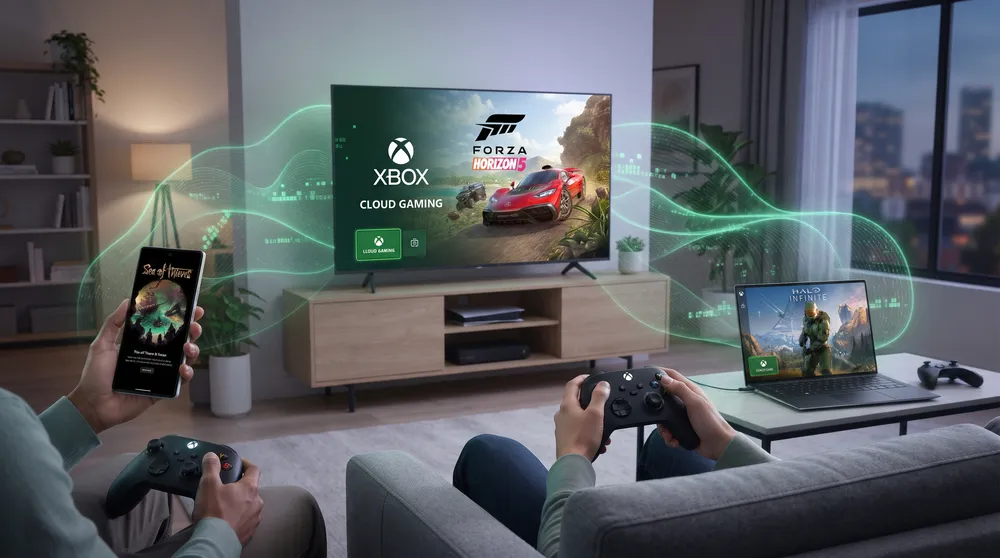
Microsoft has steadily expanded Xbox Cloud Gaming (xCloud) beyond console hardware, bringing browser-based streaming to smartphones, smart TVs, and entry-level laptops. Following server capacity expansions, searches for xbox free cloud gaming rollout and server status checks jumped over 750% as players tested the newly accessible streaming tier.
Cloud streaming removes local GPU requirements, though network stability and server queue capacity dictate overall playability.
Here is the operational breakdown of Microsoft's free cloud gaming rollout, how session limits function, and how to troubleshoot server queues.
How the Free Xbox Cloud Gaming Tier Works
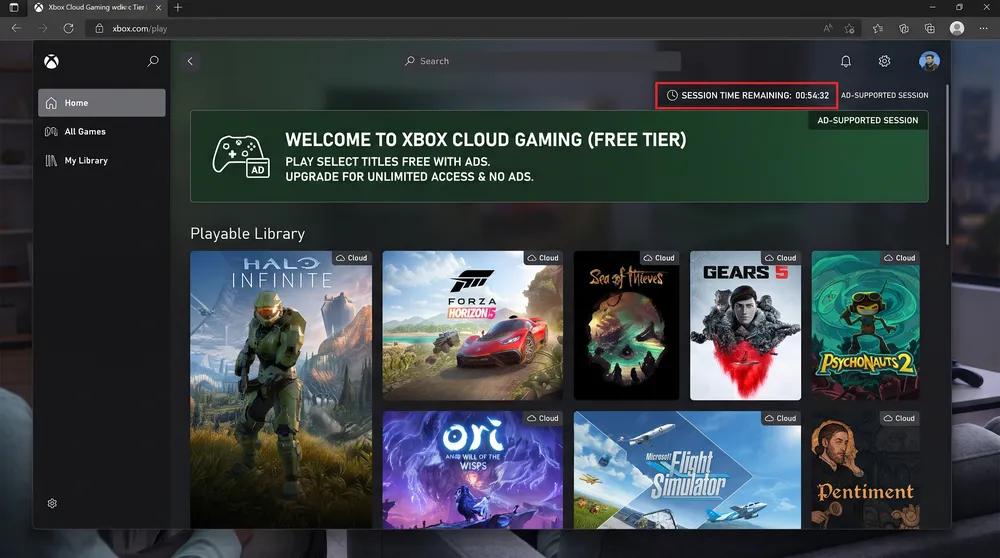
Historically, accessing Xbox Cloud Gaming required an active Game Pass Ultimate subscription (with Fortnite serving as the sole free-to-play exception). The expanded free rollout opens select catalog titles to standard Microsoft accounts without a monthly fee:
-
Ad-Supported Entry: Before launching a cloud session, free-tier users watch a brief 30-to-60-second unskippable video advertisement to subsidize server compute costs.
-
Session Time Caps: Free streaming sessions are capped at one-hour intervals per launch. Once the timer expires, players can rejoin the queue to start another session.
-
Resolution and Frame Rate: Free sessions stream at 1080p resolution and up to 60 FPS, prioritizing low input latency over 4K bitrate overhead.
Supported Platforms and Controller Requirements
Because rendering occurs on custom Xbox Series X server blades inside Microsoft Azure data centers, client hardware demands are minimal:
-
Web Browsers (PC, Mac, Linux, Chromebook): Accessible directly through
[xbox.com/play](https://xbox.com/play)using Microsoft Edge, Google Chrome, or Safari. -
iOS and Android Devices: Playable via mobile browsers without downloading heavy local game files.
-
Supported Smart TVs & Streaming Sticks: Compatible with recent Samsung Smart TVs, LG webOS models, and Amazon Fire TV Stick devices.
-
Input Methods: Most catalog titles require a Bluetooth-connected controller (Xbox Wireless Controller, PlayStation DualSense, or Backbone mobile grips), though select titles support native touch controls or mouse-and-keyboard input.
Checking Server Status and Reducing Input Latency
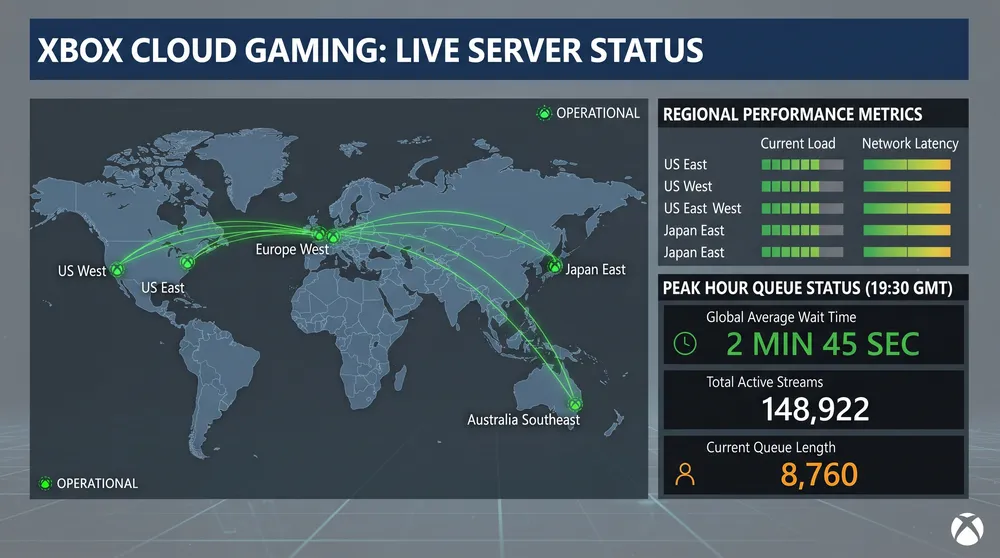
Heavy launch traffic during regional rollouts frequently triggers surge searches asking whether Xbox Cloud Gaming is down. If you encounter long wait times or connection drops:
-
Verify Official Xbox Status: Check
[support.xbox.com/xbox-live-status](https://support.xbox.com/xbox-live-status)to confirm whether Cloud Gaming blades are experiencing scheduled maintenance or regional capacity throttling. -
Use 5GHz Wi-Fi or Wired Ethernet: Cloud streaming is sensitive to packet loss. Switching from congested 2.4GHz Wi-Fi bands to a dedicated 5GHz router channel or wired Ethernet eliminates audio stuttering and macro-blocking.
-
Disable VPNs: Routing traffic through an external VPN forces your session onto distant Azure data centers, adding 40ms to 100ms of artificial input lag.


