
Roblox Technical Utility
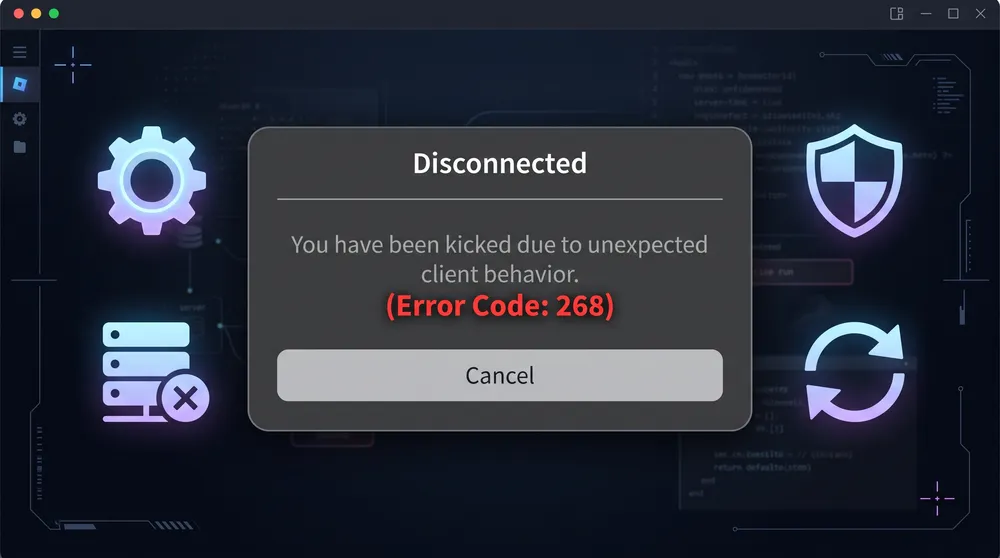
Encountering Roblox Error Code 268? Follow our step-by-step troubleshooting guide to resolve the unexpected client behavior kick, clear corrupted cache files, and restore server access.
Content (Article Body)
Few things interrupt a gaming session faster than being disconnected by Roblox Error Code 268, typically accompanied by the message: "You have been kicked due to unexpected client behavior."
This error is triggered when the Roblox anti-cheat system or server integrity verification flags a discrepancy between your game client and the official host servers. While it often occurs after using third-party software, it frequently strikes regular players due to corrupted app data, active antivirus shields, or stale cache files.
Follow these proven steps to fix the issue and get back into your favorite experiences.
1. Clear Roblox App Data and Temporary Cache
Corrupted cache files are the most frequent trigger for client mismatch flags.
-
Press
Windows Key + Rto launch the Run dialog box. -
Type
%localappdata%and hit Enter. -
Locate the Roblox folder within the directory.
-
Delete the entire folder (this removes temporary settings and corrupted configuration files without affecting your online account inventory or progress).
-
Empty your Recycle Bin and restart your PC.
2. Disable Conflicting Third-Party Overlays & Modded Files
Roblox’s Byfron security layer actively scans for external memory injectors, script executors, and modified game files.
-
Third-Party Executors: If you have previously installed script executors, exploit tools, or game shaders, completely uninstall them and delete any residual
.dllfiles from your system. -
System Overlays: Temporarily disable Discord game overlay, RivaTuner Statistics Server, and MSI Afterburner, as their screen-hooking mechanisms can inadvertently trip client verification checks.
3. Flush DNS and Reset Network Configuration
A desynced network socket can cause client-to-server validation packets to drop, triggering Error Code 268.
-
Open the Windows search bar, type
cmd, right-click on Command Prompt, and select Run as Administrator. -
Enter the following commands one by one, pressing Enter after each:
Plaintextipconfig /flushdns netsh winsock reset -
Restart your PC to allow the network stack to rebind cleanly.
4. Perform a Clean Reinstall via Official Channels
If client files remain damaged, a full reinstall is required:
-
Open Windows Settings > Apps & Features.
-
Select Roblox Player and click Uninstall.
-
Navigate directly to the official Roblox website in your browser.
-
Launch any experience to trigger a clean, up-to-date installer download.
Once reinstalled, run Roblox directly as an administrator to ensure full write permissions across your local app directory.


