
How to Fix Roblox: Common Error Codes, Crashing, and Launch Solutions
Few gaming interruptions are more frustrating than attempting to jump into your favorite experience only to face an unexpected system crash or cryptic error notification. Because the Roblox architecture operates across a web launcher, a background service client, and continuous server synchronization, client-side corruptions occasionally block access.
Below are the verified solutions to resolve the most common launch failures, error codes, and crashing loops in Roblox.
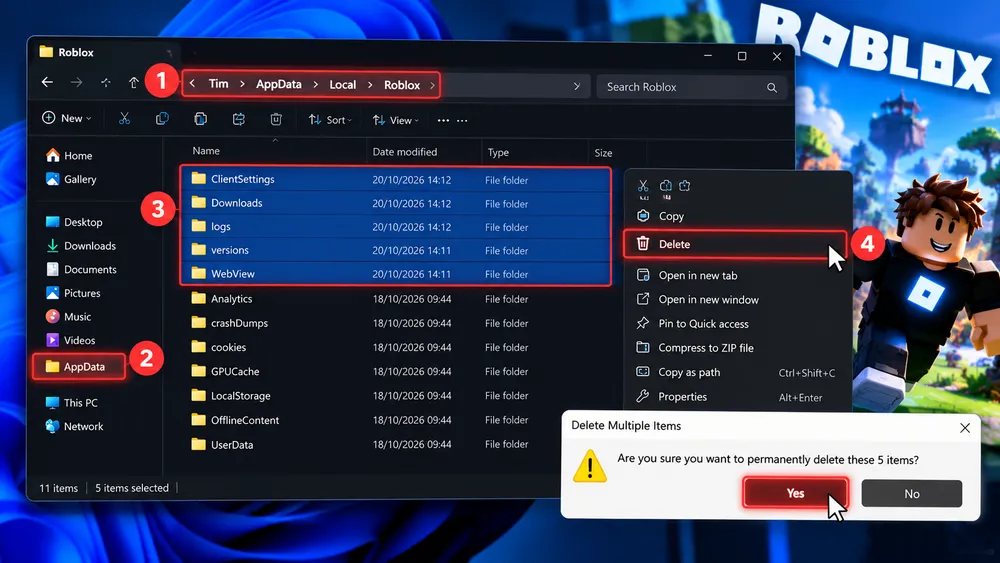
Fixing Error Code 279 (Failed to Connect to Server)
Error Code 279 indicates an active connection timeout, meaning your computer cannot establish a handshake with the specific host server instance:
-
Flush DNS and Reset Network Sockets:
-
Open the Windows Search bar, type
cmd, right-click Command Prompt, and select Run as Administrator. -
Type
ipconfig /flushdnsand press Enter. -
Type
netsh winsock resetand press Enter, then restart your PC.
-
-
Switch to Public DNS:
-
Open Control Panel > Network and Internet > Network Connections.
-
Right-click your active Ethernet or Wi-Fi adapter and open Properties.
-
Select Internet Protocol Version 4 (TCP/IPv4) and choose Properties.
-
Click Use the following DNS server addresses and enter 8.8.8.8 as Preferred and 8.8.4.4 as Alternate (Google Public DNS).
-
-
Check Port Forwarding: Ensure your router firewall does not block UDP port ranges 49152 through 65535, which Roblox utilizes for real-time game traffic.
Resolving Error Code 403 (Authentication and Forbidden Access)
Error Code 403 occurs when the server rejects your client's credentials, often triggered by corrupted local authentication tokens or background VPN services:
-
Disable Active VPNs: Commercial VPNs frequently route traffic through flagged data center IPs that Roblox’s automated anti-cheat systems block. Disconnect from your VPN before launching the client.
-
Delete Stored Credentials:
-
Press
Windows Key + R, type%localappdata%\Roblox, and hit Enter. -
Locate the file named
GlobalBasicSettings_13.xmland delete it. -
Restart the client; this forces Roblox to generate a fresh authentication token upon logging in.
-
Fixing Crash on Launch and Black Screens
If the Roblox client terminates immediately upon launching or freezes on a black screen:
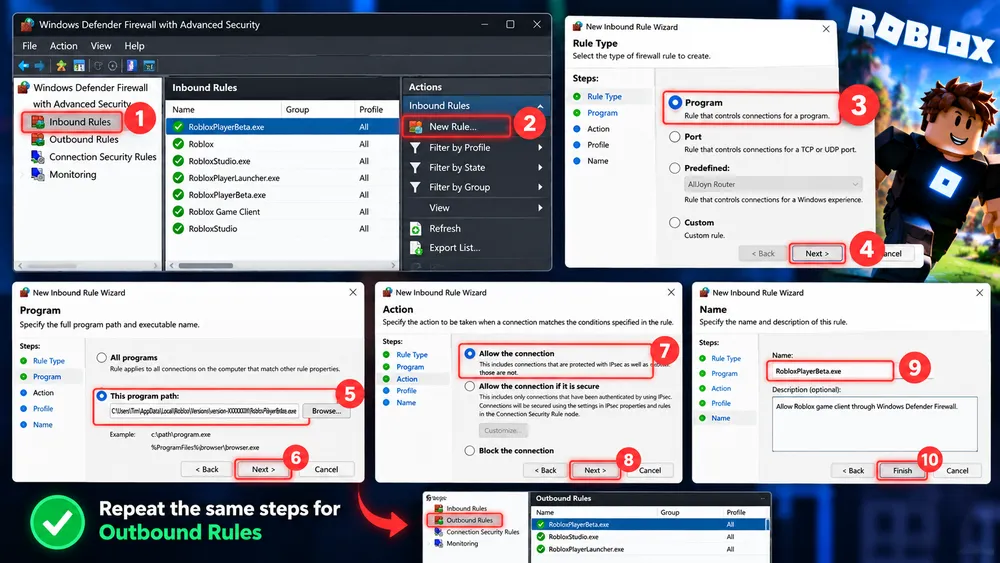
Step 1: Clean Up Corrupted Local AppData
Residual files from interrupted updates routinely cause runtime conflicts:
-
Press
Windows Key + R, enter%temp%, and select OK. -
Press
Ctrl + Aand delete all temporary files. Skip any files currently locked by background tasks. -
Navigate to
C:\Users\[YourUsername]\AppData\Local\Robloxand delete the contents of the Logs and Versions folders.
Step 2: Whitelist Through Windows Defender Firewall
Overzealous antivirus suites frequently mistake client executables for unauthorized network intrusions:
-
Open Windows Security > Firewall & network protection.
-
Click Allow an app through firewall.
-
Click Change settings, locate Roblox Player, and ensure both Private and Public checkboxes are marked.


