
GTA 6 Xbox Auto-Upload Bans Explained: How to Turn Off Automatic Clip Uploads
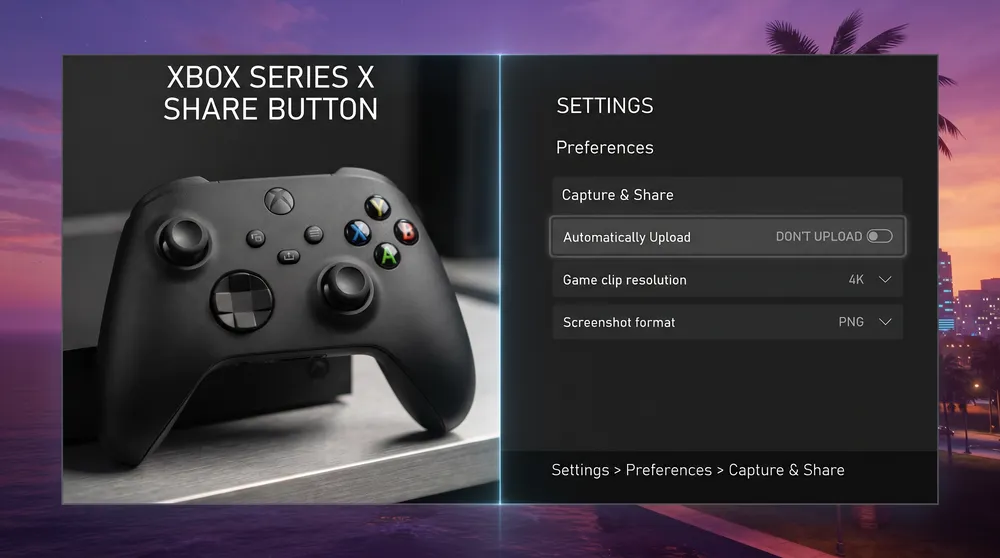
Following the November 19, 2026 release of Grand Theft Auto VI, players on Xbox Series X|S uncovered an unintended conflict between Rockstar’s mature open-world environments and Microsoft’s default console capture settings. Search volume for gta 6 xbox auto upload bans surged by over 400% after players reported receiving temporary two-day Xbox Network suspensions from clips uploaded automatically without manual review.
Much like keeping your single-player progression secure in our GTA 6 bowling alley safe code walkthrough and tracking franchise milestones in our GTA 6 $3.79 billion day-one sales report, adjusting your Xbox capture preferences takes less than a minute and protects your account from automated enforcement flags.
Here is why automatic clip uploads trigger suspensions and how to disable the setting immediately.
Why GTA 6 Clips Trigger Xbox Network Suspensions
Microsoft’s Xbox Community Standards strictly prohibit uploading screenshots or video clips containing nudity, explicit sexual content, or extreme gore to public Xbox Network servers. While Grand Theft Auto VI carries an M (Mature 17+) rating for offline and online play, Xbox’s cloud moderation pipeline evaluates uploaded captures against universal platform-wide safety rules:
-
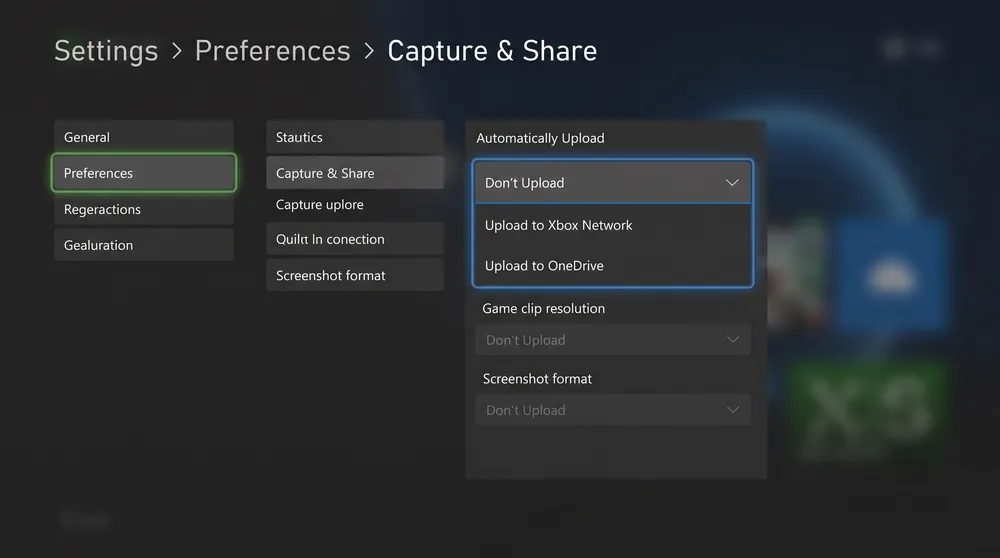
Default Auto-Upload Behavior: Out of the box, Xbox Series X|S consoles automatically upload newly recorded screenshots and clips directly to the Xbox Network cloud.
-
Accidental Share Button Presses: Because the dedicated Share button sits directly in the center of the Xbox Wireless Controller, players frequently capture clips unintentionally during intense firefights, Vice City beach scenes, nightlife interiors, or story cutscenes.
-
Automated Moderation Flags: Once a capture reaches the Xbox Network, automated scanning tools can flag suggestive swimwear, adult nightclub venues, or explicit story moments issuing temporary suspensions (commonly lasting 48 hours) that restrict online multiplayer and party chat.
Step-by-Step: How to Turn Off Auto-Upload on Xbox Series X|S
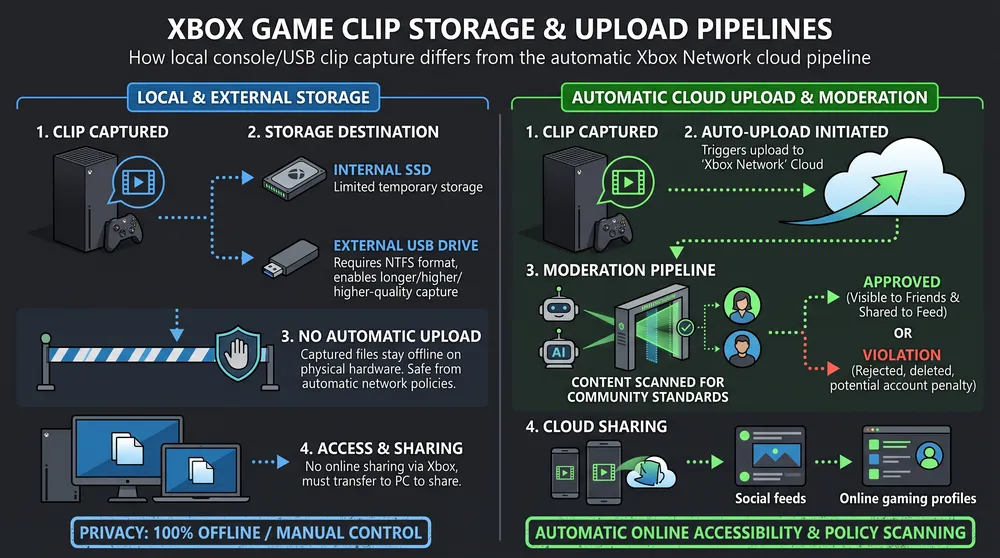
Disabling automatic uploads stops your console from sending captures to Microsoft's servers while allowing you to continue recording clips locally:
-
Press the Xbox button on your controller to open the guide menu.
-
Navigate to Profile & system, then open Settings.
-
Select Preferences from the left-hand column, then choose Capture & share.
-
Highlight the Automatically upload dropdown menu.
-
Change the setting from Captures by me to Don't upload.
Local Recording vs. Cloud Sharing: What Changes?
| Capture Feature | When Auto-Upload Is Enabled | When Set to "Don't Upload" |
| Taking Screenshots & Clips | Works normally via Share button | Works normally via Share button |
| Storage Location | Stored locally AND uploaded to Xbox Cloud | Stored strictly on internal console SSD or external USB 3.0 drive |
| Moderation Risk | Every clip is scanned upon upload | Zero cloud scanning until you manually choose to share a specific file |
If you still want to transfer gameplay highlights to your PC or phone without risking Xbox Network enforcement, connect a formatted USB 3.0 flash drive to your console and set it as your primary capture location under Capture & share > Capture location.


