How to Use a PS5 Controller on PC for GTA 5: DualSense Setup and Settings Guide
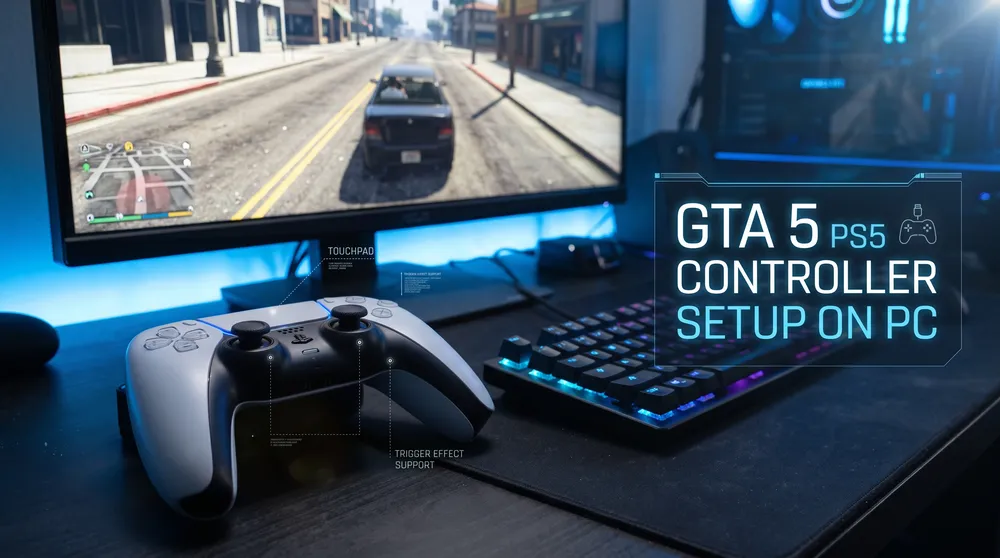
While Grand Theft Auto 5 remains one of the most played sandbox titles on PC, navigating vehicles and aerial combat often feels far more natural on an analog gamepad than a standard keyboard and mouse.
Just as players frequently configure cross-platform inputs when setting up Roblox on PS4 and PS5, getting a PlayStation controller running cleanly on PC games requires understanding direct input translation. Because Windows natively favors Xbox controllers, playing GTA 5 with a DualSense requires a few specific configuration steps.
Below is the verified method to connect, calibrate, and troubleshoot your PS5 controller for GTA 5 and GTA Online on PC.
Connection Options: Wired USB vs. Wireless Bluetooth
You can connect your DualSense controller to your computer using two methods:
Method 1: Wired USB Connection (Recommended)
Connecting via a physical cable provides zero input latency and ensures stable audio transmission if you use the controller's headset jack:
-
Connect a USB-C to USB-A (or USB-C to USB-C) data cable to your DualSense.
-
Plug the opposite end into an available high-speed USB port on your PC.
-
Windows will automatically recognize the device as a "Wireless Controller" and configure generic audio and input drivers.
Method 2: Wireless Bluetooth Pairing
If your motherboard or laptop features integrated Bluetooth:
-
Ensure the controller is powered off.
-
Press and hold the Create button (left of the touchpad) and the central PS button simultaneously for three seconds.
-
Release both buttons once the light bar around the touchpad begins blinking rapidly in a double-pulse pattern.
-
On your PC, open Settings > Bluetooth & devices, select Add device, and choose Wireless Controller from the list.
Configuring the PS5 Controller on Steam
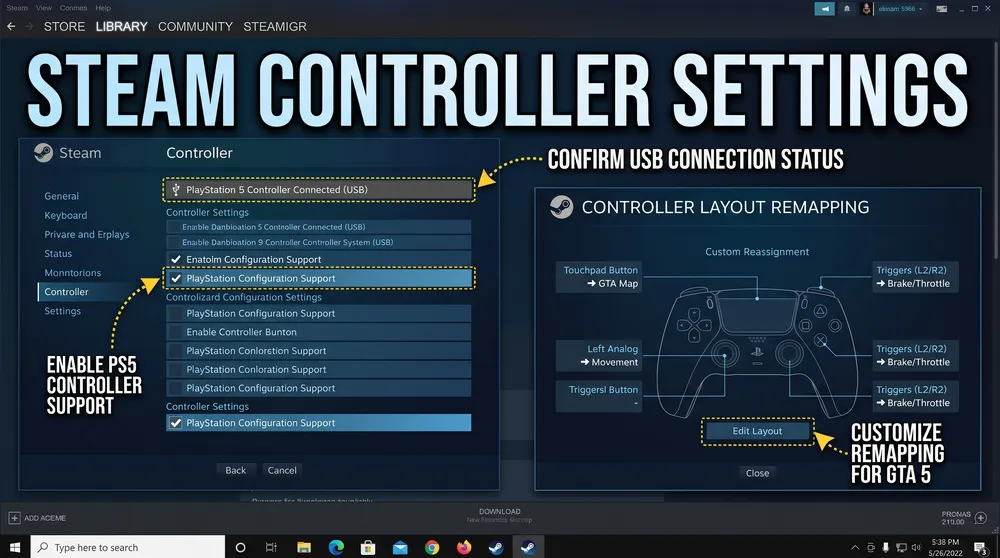
If you launch GTA 5 through Steam, the platform provides built-in API translation that converts DualSense inputs into game-ready commands:
-
Launch Steam and open Settings from the top-left menu.
-
Select the Controller tab on the left sidebar.
-
Under the controller settings menu, ensure Enable Steam Input for PlayStation controllers is toggled to ON.
-
Right-click Grand Theft Auto V in your Steam Library and select Properties.
-
Navigate to the Controller tab and verify that the override dropdown is set to Use default settings or Enable Steam Input.
Launching the game through Steam will now translate all physical inputs properly, mapping triggers, thumbsticks, and face buttons accurately.
Setting Up Non-Steam Versions (Rockstar Games Launcher & Epic Games)
If you purchased GTA 5 directly through the Rockstar Games Launcher or the Epic Games Store, the game might not automatically recognize PlayStation inputs without assistance. You have two reliable solutions:
Option A: The "Non-Steam Game" Shortcut
-
Open Steam, click Games in the top navigation bar, and select Add a Non-Steam Game to My Library.
-
Browse your local files and select the executable for the Epic Games Launcher or GTA 5 (
PlayGTAV.exe). -
Launch the game directly through Steam to utilize Steam's built-in DualSense wrapper without installing additional third-party tools.
Option B: Using DS4Windows or DualSenseX
For complete system-wide compatibility across any digital storefront:
-
Download the open-source utility DS4Windows or DualSenseX (DSX).
-
Install the required virtual gamepad driver (ViGEmBus) when prompted.
-
These applications emulate an Xbox 360 controller output while reading your physical PS5 controller inputs, ensuring GTA 5 registers every button press without conflict.
What About Haptic Feedback and Adaptive Triggers?
On the native PlayStation 5 console edition, GTA 5 incorporates dynamic trigger resistance for weapon firing and localized haptic rumble that reacts to road surfaces.
On PC, native support for advanced DualSense features depends on your setup:
-
Adaptive Triggers: By running third-party translation tools like DualSenseX via a wired USB connection, players can map simulated trigger resistance profiles to accelerate vehicle pedals or add tactile recoil steps to weapon firing.
-
Basic Vibration: Standard rumble operates over both wired and Bluetooth connections once Steam Input or DS4Windows is properly active.
Troubleshooting Common Controller Issues
If your controller connects but does not respond inside Los Santos:
-
Wrong Button Prompts: GTA 5 on PC was programmed with native Xbox button prompts (A, B, X, Y). Even when your PS5 controller functions properly, the on-screen user interface will display Xbox prompts unless you install a custom texture replacement mod.
-
Double Input Bug: If your character performs actions twice or skips menu options, check that you do not have Steam Input and a third-party tool like DS4Windows active simultaneously. Close the external tool to prevent conflicting input channels.
-
Check Data Cable Quality: Many cheap USB cables carry power lines only without data transfer pins. If the controller charges but Windows does not detect a new input device, swap to a certified high-speed data cable.